Tuesday, December 24, 2013


Monday, December 23, 2013
nijer site er url ke google a ping kora
1. http://www.pingmyurl.com/
2. http://www.pingmyurl.com/social/
3. http://www.mypagerank.net/service_pingservice_index
4. http://pingmylink.com/
5. http://googleping.com/
6. https://pingler.com/
7. http://pingomatic.com/
8. http://www.theim.org/getbacklinks/instantindexer/index.php
9. http://www.bulkping.com/
10. http://www.pingfarm.com/
11. http://feedshark.brainbliss.com/
12. http://pingmyblog.com
13. http://pingates.com/
14. http://www.pingthatblog.com/index.php
2. http://www.pingmyurl.com/social/
3. http://www.mypagerank.net/service_pingservice_index
4. http://pingmylink.com/
5. http://googleping.com/
6. https://pingler.com/
7. http://pingomatic.com/
8. http://www.theim.org/getbacklinks/instantindexer/index.php
9. http://www.bulkping.com/
10. http://www.pingfarm.com/
11. http://feedshark.brainbliss.com/
12. http://pingmyblog.com
13. http://pingates.com/
14. http://www.pingthatblog.com/index.php
Sunday, December 22, 2013
link gunbam
5 Best Online Tools to Count & Analyze Your Backlinks
 Here is a latest addition and I find this really
worth mentioning here. It’s a paid backlink checker tool but you can get
complete backlink analysis along with anchor text analysis of your
site, when you register for free account. This tool offers great deal of
detailed related to all backlinks to your site and with time, how your
site links are increasing or decreasing. Specially after Penguin update,
if you are hit by negative SEO, this tool will be your life saver, as
you can get all the link details, along with percentage breakdown of anchor text pointing to your site. One of the best backlink checker tool in the whole list. < Check out Ahrefs>
Here is a latest addition and I find this really
worth mentioning here. It’s a paid backlink checker tool but you can get
complete backlink analysis along with anchor text analysis of your
site, when you register for free account. This tool offers great deal of
detailed related to all backlinks to your site and with time, how your
site links are increasing or decreasing. Specially after Penguin update,
if you are hit by negative SEO, this tool will be your life saver, as
you can get all the link details, along with percentage breakdown of anchor text pointing to your site. One of the best backlink checker tool in the whole list. < Check out Ahrefs>
I also used SEOMOZ premium account, which sends weekly report where you can get more detailed backlink and keyword ranking report. But for free options, all the above mentioned backlink tools and traffic travis is the best.
1. AHrefs:
Here is a latest addition and I find this really
worth mentioning here. It’s a paid backlink checker tool but you can get
complete backlink analysis along with anchor text analysis of your
site, when you register for free account. This tool offers great deal of
detailed related to all backlinks to your site and with time, how your
site links are increasing or decreasing. Specially after Penguin update,
if you are hit by negative SEO, this tool will be your life saver, as
you can get all the link details, along with percentage breakdown of anchor text pointing to your site. One of the best backlink checker tool in the whole list. < Check out Ahrefs>I also used SEOMOZ premium account, which sends weekly report where you can get more detailed backlink and keyword ranking report. But for free options, all the above mentioned backlink tools and traffic travis is the best.
2. Webmaster Tool
If you ask me webmaster tool is the best tool to analyze and count your backlinks from other site. It always gives you true information about your blog and there is no chance of false information. If you want to analyze your backlinks, first check out webmaster tool
Google provides backlink tool for site owners
One
of the common requests I hear from webmasters is “Why doesn’t Google
show me most or all of my backlinks?” Well, as of today, Google’s webmaster console will now let you see your site’s backlinks. Major props to the webmaster console team for this new feature. A few things to know:
- The backlink tool doesn’t show 100% of the backlinks from Google yet, but I expect the number of links that are available to grow.
- In particular, for my site I was easily able to see more than 10x more links in this new tool than the link: command gave me. The link: command has always returned a small fraction of the backlinks that Google knows about, mainly for historical reasons (e.g. limited disk space on the machines that served up “link:” data).
- You can download the backlinks in a really nice CSV format, suitable for slicing and dicing and other analysis. I believe you can export up to a million backlinks if your site has that many backlinks.
- Do not assume just because you see a backlink that it’s carrying weight. I’m going to say that again: Do not assume just because you see a backlink that it’s carrying weight. Sometime in the next year, someone will say “But I saw an insert-link-fad-here backlink show up in Google’s backlink tool, so it must count. Right?” And then I’ll point them back here, where I say do not assume just because you see a backlink that it’s carrying weight.
I’m sure that there was more that I wanted to say, but why don’t people start playing with it and give feedback or post backlink tool-related questions? I know that the webmaster team reads to get feedback over here too; congrats again to that entire team for providing this. If you want to start browsing your site’s backlinks, sign up for Google’s webmaster console now.
- The backlink tool doesn’t show 100% of the backlinks from Google yet, but I expect the number of links that are available to grow.
- In particular, for my site I was easily able to see more than 10x more links in this new tool than the link: command gave me. The link: command has always returned a small fraction of the backlinks that Google knows about, mainly for historical reasons (e.g. limited disk space on the machines that served up “link:” data).
- You can download the backlinks in a really nice CSV format, suitable for slicing and dicing and other analysis. I believe you can export up to a million backlinks if your site has that many backlinks.
- Do not assume just because you see a backlink that it’s carrying weight. I’m going to say that again: Do not assume just because you see a backlink that it’s carrying weight. Sometime in the next year, someone will say “But I saw an insert-link-fad-here backlink show up in Google’s backlink tool, so it must count. Right?” And then I’ll point them back here, where I say do not assume just because you see a backlink that it’s carrying weight.
I’m sure that there was more that I wanted to say, but why don’t people start playing with it and give feedback or post backlink tool-related questions? I know that the webmaster team reads to get feedback over here too; congrats again to that entire team for providing this. If you want to start browsing your site’s backlinks, sign up for Google’s webmaster console now.
3. Yahoo Site Explorer
Yahoo, one of the best search engine next to google and bing. Yahoo site explorer allow you to check your inboundlinks data effectively, this tool is used by many SEO experts to analyze their competitors.Check Backlinks in Yahoo Site explorer
4. Open Site Explorer
A great tool by seomoz.org and widely used backlink analyze tool by webmasters and SEO experts. If you become pro-member of their site you dont need any backlink analyze tool other than this. It figure out complete link data about your blog and their popularity.
Features of Open Site Explorer -
1. Compare multiple URL2. Complete link data about your competitiors
3. Check your Blog Authority and popularity easily.
4. It give full data [pagerank, authority etc.,] of the page where your blog is linked.
Check Backlink in Open Site Explorer
5. Backlink watch
Another commonly used online tool to check your backlinks, it tells us which page your blog is linked to and whether the page is nofollow or dofollow etc., It is very essential for new bloggers

6. Online Utility tool
I think the above mentioned 4 tools is more than enough to count and analyze your backlinks. This backlink checker tool from online utility.org is another cool way to get your links data.Check Backlinks in online utility.org


Saturday, December 21, 2013
how to find my keyword competitor website
1. WhoICompete With
Who I Compete With offers free and pro accounts ($10 per month). If you go with a free account, you’re limited to searching the top 10 search results pages. Pro allows you to search up to 50 top search results pages. From my experience, free is just fine.Once you log in, you simply enter your top 10 keywords and hit the Check button.
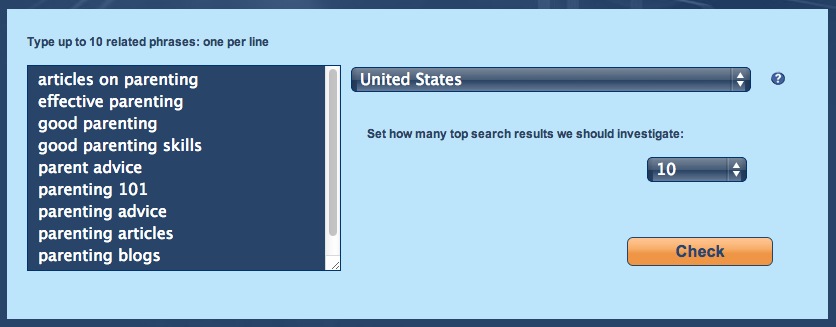
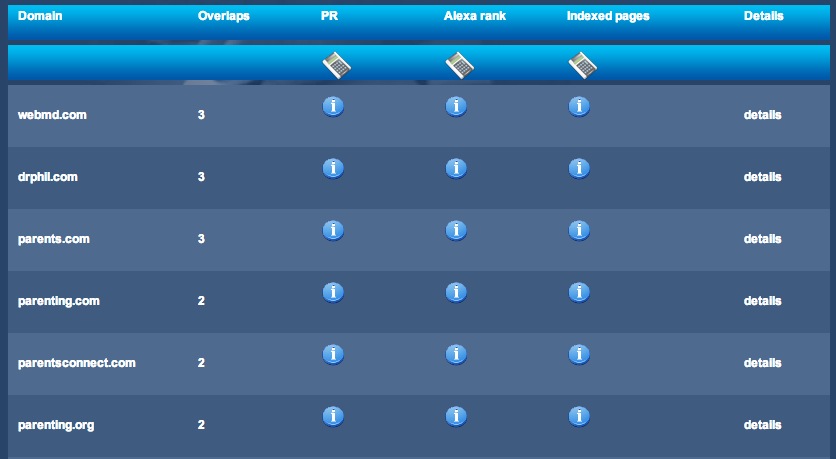
When it’s done, you’ll have a list of the top competitors for those keywords and an option to export to CSV at the bottom of the page.
2. SERP Dominator
My preferred method is to use the SERP Dominator tool from Ontolo. To use this tool, you’ll need to register an account with Ontolo, which is free. The free account is limited to one campaign but if you have a pro account, you can run this tool and save the results for several campaigns.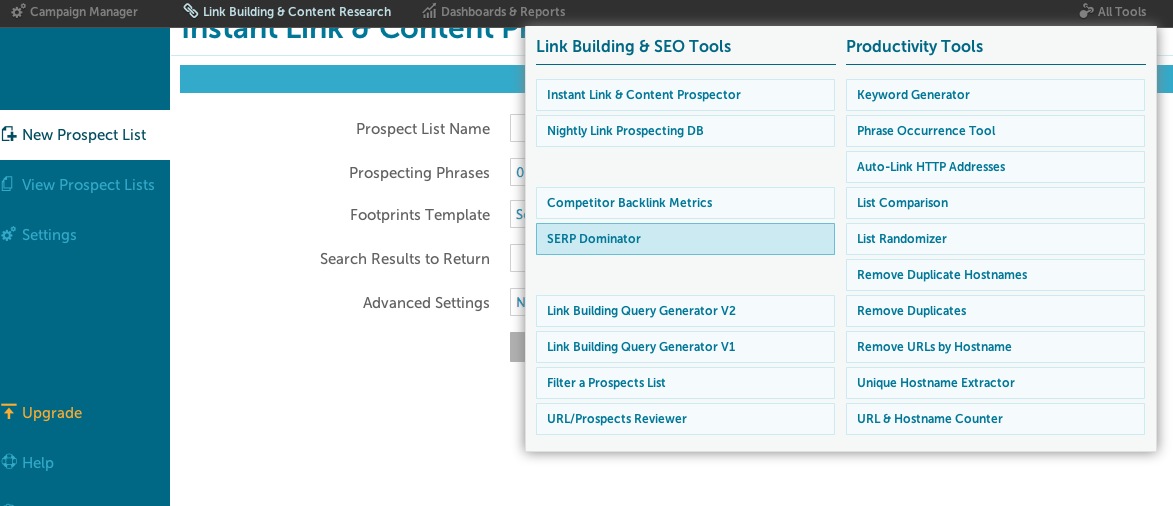
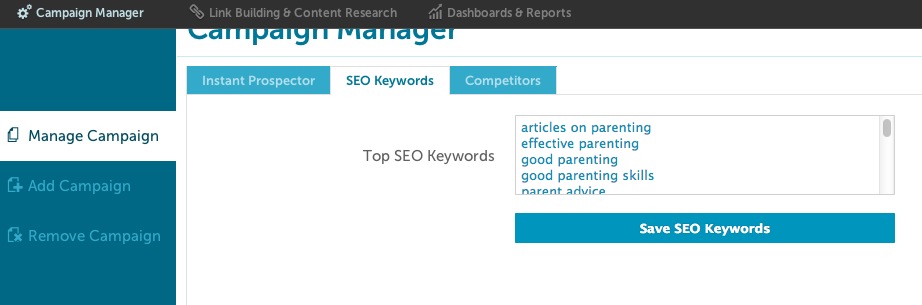
In the Campaign Manager section, you’ll need to add a list of the top keywords you want your site to rank for in the “SEO Keywords” tab. I believe you can enter up to 25 keywords.
On the SERP Dominator page, you can choose how many search results pages you want to analyze. It’s up to you to decide on how in-depth you’d like to go, but I usually just set it to the top 10 ranking pages.
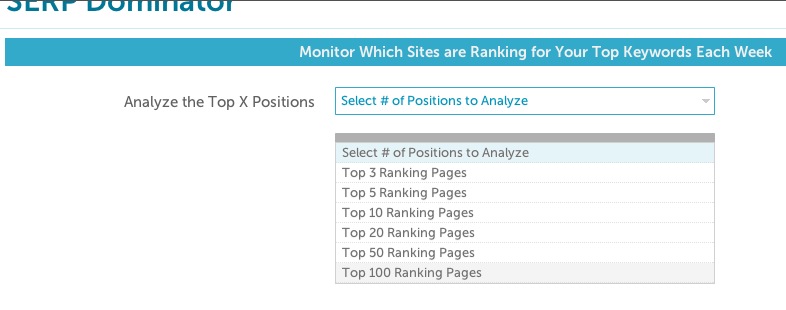
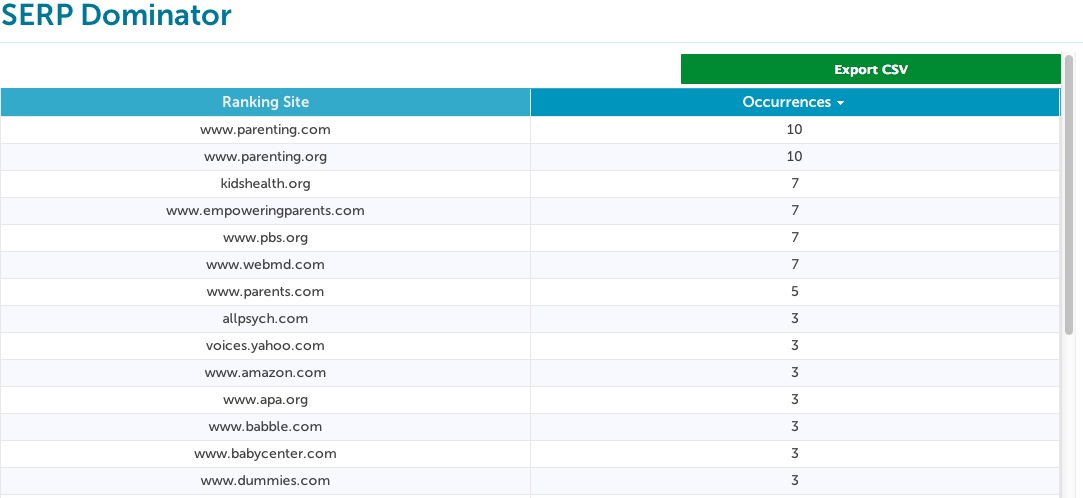
SERP Dominator returns a list of sites sorted by the amount of times they show up for your keywords in the search results. There’s an option to export to CSV too.
3. Get Links Where Your Competitors Are
Both of the options above are likely to contain a bunch of non-relevant competitors. I usually visit the top 15-20 sites and make sure they are actually competitors. I remove any sites that I know aren’t relevant such as Wikipedia, Yahoo Voices and Amazon.com.When you have a solid list of competitor sites to work from, the next step is to figure out why they are ranking so highly and how you can emulate what they are doing.
I’ll usually take a look around their site to see what they’re doing. I’ll see if they have a blog and if they’re updating it regularly. What types of content are they placing on their site? How are they communicating with customers? Do they have active social media accounts?
I’ll also look at each competitor’s link profiles using Open Site Explorer (OSE)

OSE is a tool that comes with a $99 per month paid membership with Moz.com, which is totally worth the cost. With a list of your competitors backlinks you can try to get links on the same sites they are. I would recommend sorting this list by highest Domain Authority because there are usually a lot of really low quality sites in these reports. Other really good alternatives to OSE are ahrefs ($79 per month) and MajesticSEO ($49.99 per month). If you want something free and don’t mind a bunch of ads, try Backlink Watch.
We also check all of our client’s competitor sites in the Site Finder tool from Raven Tools, which is another $99 per month service.
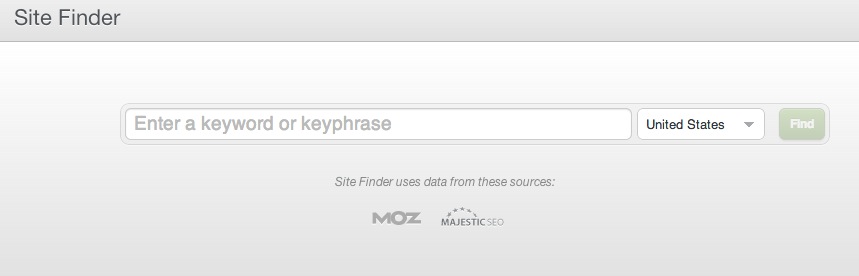
Site Finder searches for the top pages that show up based on the keyword you input and then finds the sites that are linking to two or more of those sites.
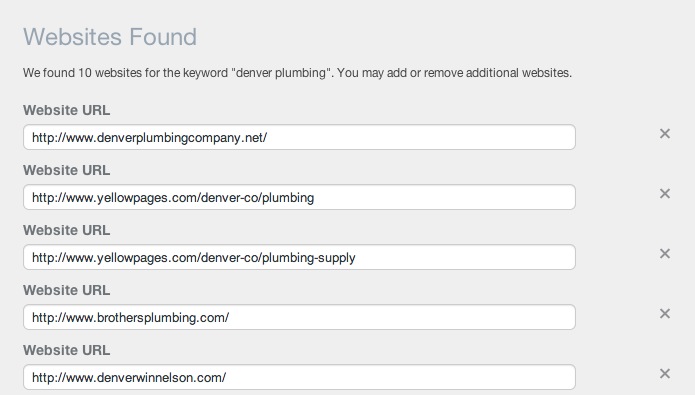
If a site is linking to two or more of your competitors, there’s a good chance you can get a link from them too. You’re entire link strategy shouldn’t be based around what your competitors are doing, but it’s a good start.
4. http://tools.seobook.com/competitive-research-tools/
5. so important
http://www.seotoolset.com/tools/free_tools.html
6. SEO Book: Page Similarity Comparison Tool
With this service you can easily compare page titles, meta information, and common phrases on your competitors homepages. I suggest including your URL in a search with your top 5 competitors. I used Coke and Pepsi as an example:

Advance search
5 Tips for Blog Research using Google Advanced Search
Google provides you with some advanced search terms and operators you can use to filter out information that will help save you a lot of time.
For example, if I am writing a blog about tools for managing twitter. I could run the following search in Google:
site:.com inurl:”blog” “post a comment” -”comments closed” -”you must be logged in” “managing twitter”
The commands used are explained below:
inurl: blog – Only return web addresses that have the word blog in them so it’s likely to find blog posts.
“post a comment” – I’d like the words ‘post a comment’ on the page so I know it accepts comments.
-“comments closed” – I don’t want the words comments closed on the page so I know the comments are still open.
-“you must be logged in” – I don’t want to have be logged in to enter the comment.
“managing twitter” – I want the words managing twitter to appear within the content.
Note: There is a minus sign in front of ‘you must be logged in’ and “comments closed” to indicate you don’t want these terms.
Finance inurl:guest-post
This returned the following:

finance inurl:write-for-us
finance + “guest post”
inurl:guest-post-guidelines
Google provides you the facility to search by file type.
So, if you were writing an article on Facebook metrics you could type in the following command into Google.
“Facebook metrics” filetype: pdf
When I did this search the second item in the list had a detailed guide on Facebook metrics.
This command could also be used for other file types such as doc, ppt etc.
If you want to do a list post and it’s about sports you could do a search for ‘7 ways’ and see what posts have this in their page title.
Sports inurl:”7 ways”
This returns the following:
Another helpful way of doing keyword research using Google instant. As you type in keywords into Google a drop down is displayed.

So Google gives you a list of similar popular searches. For example
in this list I see that ‘Google advanced search operators’ is searched
quite a lot so I could consider using this within the title of the blog
post.
These are just some of the ways to used Google Advanced search. Have you any ideas you would like to share? We would love to hear your comments.
1. Building Your Network with Other Bloggers
When you write an article about a particular topic it can be useful to network with bloggers that are writing about similar topics. You can type in the topic you are writing about and find results in Google but it will take you time to find relevant blogs and bloggers.Google provides you with some advanced search terms and operators you can use to filter out information that will help save you a lot of time.
For example, if I am writing a blog about tools for managing twitter. I could run the following search in Google:
site:.com inurl:”blog” “post a comment” -”comments closed” -”you must be logged in” “managing twitter”
The commands used are explained below:
inurl: blog – Only return web addresses that have the word blog in them so it’s likely to find blog posts.
“post a comment” – I’d like the words ‘post a comment’ on the page so I know it accepts comments.
-“comments closed” – I don’t want the words comments closed on the page so I know the comments are still open.
-“you must be logged in” – I don’t want to have be logged in to enter the comment.
“managing twitter” – I want the words managing twitter to appear within the content.
Note: There is a minus sign in front of ‘you must be logged in’ and “comments closed” to indicate you don’t want these terms.
2. Building Your Brand Through Guest Posting
If you want to find guest posting opportunities within your niche you can use Google commands. For example, if I was looking for guest post opportunities for finance blogs, I could research using the following:Finance inurl:guest-post
This returned the following:

Using Google advanced search to find guest posting opportunities
finance inurl:write-for-us
finance + “guest post”
inurl:guest-post-guidelines
3. Finding Supporting Material for Your Blog Posts
Sometimes you want a lot of detail related to the article you are writing or you may want to find presentations, excel spreadsheets or other types of documents.Google provides you the facility to search by file type.
So, if you were writing an article on Facebook metrics you could type in the following command into Google.
“Facebook metrics” filetype: pdf
When I did this search the second item in the list had a detailed guide on Facebook metrics.
This command could also be used for other file types such as doc, ppt etc.

4. Finding Ideas for Posts
If you’re really stuck for an idea for a post you could use posts already written for some inspiration.If you want to do a list post and it’s about sports you could do a search for ‘7 ways’ and see what posts have this in their page title.
Sports inurl:”7 ways”
This returns the following:

5. Use Google Instant for Keyword Research
In a previous video post we covered how to you use Google Keyword Tool for keyword research for your blogs posts. It’s useful to target relevant keywords to optimize for traffic.Another helpful way of doing keyword research using Google instant. As you type in keywords into Google a drop down is displayed.

Using Google Instant to research keywords for blog posts
These are just some of the ways to used Google Advanced search. Have you any ideas you would like to share? We would love to hear your comments.
Friday, December 20, 2013
Google Analytic
1. Go to Google Analytic Official Site.
2. Sign Up
3. Get Tracking Code (UA-46637656-1 for takapayout.blogspot.com)
4. paste the code in head tag in each page
2. Sign Up
3. Get Tracking Code (UA-46637656-1 for takapayout.blogspot.com)
4. paste the code in head tag in each page
<script type='text/javascript'>

  var _gaq = _gaq || [];
  _gaq.push(['_setAccount', 'UA-46637656-1']);
  _gaq.push(['_setDomainName', 'takapayout.blogspot.com/']);
  _gaq.push(['_trackPageview']);

  (function() {
    var ga = document.createElement('script'); ga.type = 'text/javascript'; ga.async = true;
    ga.src = ('https:' == document.location.protocol ? 'https://ssl' : 'http://www') + '.google-analytics.com/ga.js';
    var s = document.getElementsByTagName('script')[0]; s.parentNode.insertBefore(ga, s);
  })();

</script>
Sitemap
Sitemap For HTML Site:
Sitemap For Blogger:
Here’s what you need to do to expose your blog’s complete site structure to search engines with the help of an XML sitemap.

Sitemap For Blogger:
Generate a Complete Sitemap for your Blogger Blog
This section is valid for both regular Blogger blogs (that use a .blogspot.com address) and also the self-hosted Blogger blogs that use a custom domain (like postsecret.com).Here’s what you need to do to expose your blog’s complete site structure to search engines with the help of an XML sitemap.
- Open the Sitemap Generator and type the full address of your blogspot blog (or your self-hosted Blogger blog).
- Click the Create Sitemap button and this tool will instantly generate the necessary text for your sitemap. Copy the entire generated text to your clipboard (see screenshot below).
- Next go to your Blogger dashboard >> Settings >> Search Preferences, the enable Custom robots.txt option (available in the Crawling and Indexing section). Paste the clipboard text here and save your changes.
Subscribe to:
Posts (Atom)
- see here on Indiatimes launches “Timesdeal” to find Great Offers in INDIA
- Vapouriz review on Indiatimes launches “Timesdeal” to find Great Offers in INDIA
- private investigator kentucky on Judgement day for all virus, spy,malware
- west virginia harley on Google Caffeine – What’s new in it ?
- OJOTAS IRROMPIBLES on Surf internet without any browser
7. Analyze Backlinks:http://www.analyzebacklinks.com/